Winthrop University offers one video conferencing platform: Microsoft Teams.
Here, you can find resources for this platform.
Microsoft Teams is a collaboration tool built into our Winthrop Office package. All faculty and staff have access to this application. You can use Teams to chat with coworkers one-on-one or in a group, make audio or video calls, share files, and organize projects and tasks.
Winthrop recommends faculty and staff use the desktop app version of Teams as opposed to the web version. If you do not already have Teams on your device, visit the Microsoft Teams download page and download the application by following these steps:
1. Click the Download Teams button.

2. The Teams application will start to download. You may see the file appear at the bottom of your browser window.

3. Once the download is complete, click on the Teams installer executable and the Microsoft Teams application will begin to install.
4. When the installation is complete, you will see the login screen. Use your Winthrop e-mail and password to log in.


Here you can navigate to the various sections in Microsoft Teams. From the top, you’ll see the following icons:
Above, the Teams icon is selected in the App bar, so the list of the teams we are members of are displayed here.
A dedicated section within a Team to organize conversations and tasks into specific topics or projects.
Clicking this button takes you through the process of joining a team. This button is only visible when the Teams icon is selected in the App bar.
Clicking this button selects the Chat icon in the App bar and allows you to start a new chat with an individual or a group.
This bar at the top is used to query apps or perform a search in Teams.
Switch between different Teams pages with these tabs. Conversations and Files are automatically included; the + sign tab allows you to add shortcuts to content in Teams.
This section displays all the conversations in the selected channel. Chats in Channel Conversations are persistent, so if you’ve been away, it’s easy to scroll through to get caught up when you get back. Chats can include visual indicators such as the @mention, which indicates that the chat specifically mentions a user, or a red bang to indicate high importance. Take note that chats are open by design so everyone in the team has visibility to the conversation to help speed up the decision-making process when needed.
This is where you can type a message to start a conversation. You can send a quick chat or expand the Compose box to access rich formatting tools.
When you’re ready to share your chat, click the Send icon to post your chat to the team.
On a Teams call, you can:
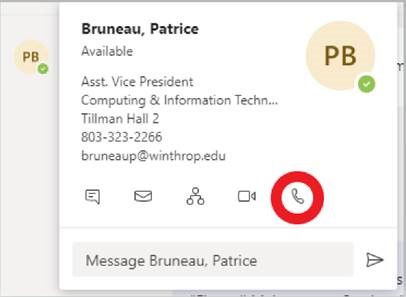
To start a call, you do not need to create a team. You can call any other Winthrop Teams user. Simply search for the user in the search bar at the top of the screen. When you find the correct contact, click on their name and then click on the blue phone icon in the upper right corner.

If you have already been chatting with the person you want to call, click on their profile photo and click the phone icon.
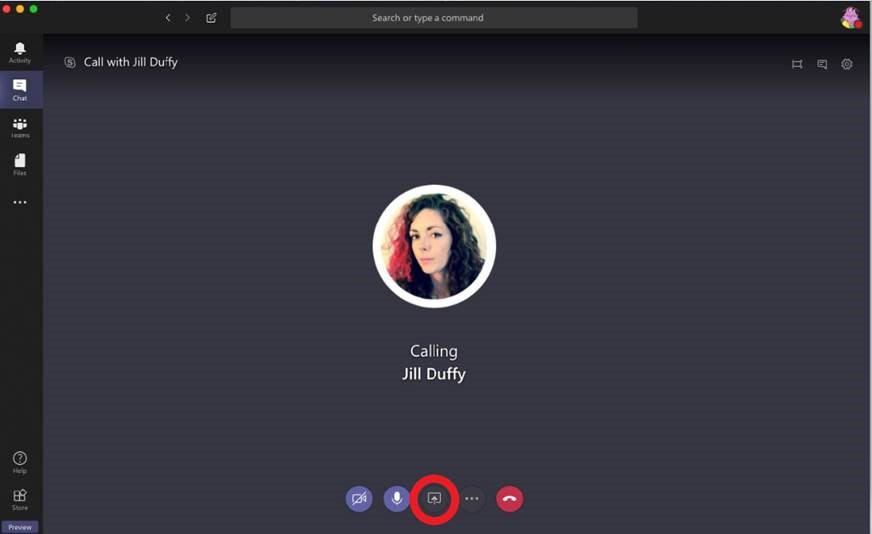
Once the call begins, you can choose to share your screen by clicking the icon circled below. To end the call, click the red phone icon.
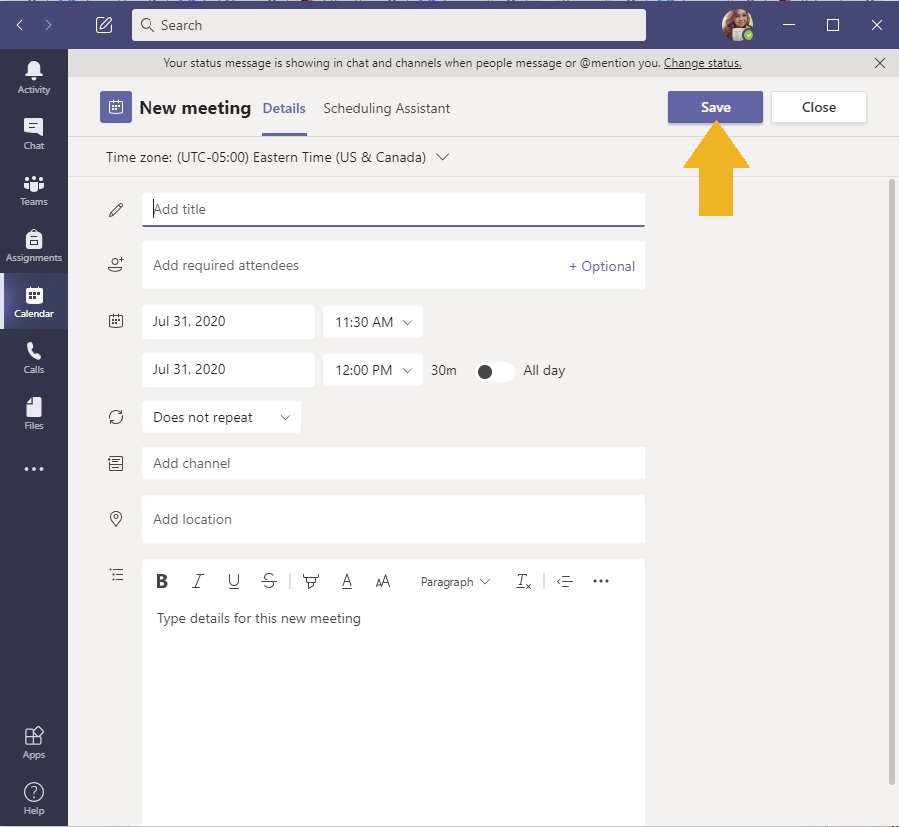
You can set up a meeting ahead of time and give the invited participants enough notice about a meeting. Like Outlook, formal meeting requests in Teams include a Meeting Title (the equivalent of Subject in Outlook), Location, Start and End Date or Time, Details, and a list of participants. In Teams, you can select a channel to meet in. When a channel is selected, artifacts from the meeting are posted in the channel.
1. Click the Calendar button that appears at the bottom of the left pane.
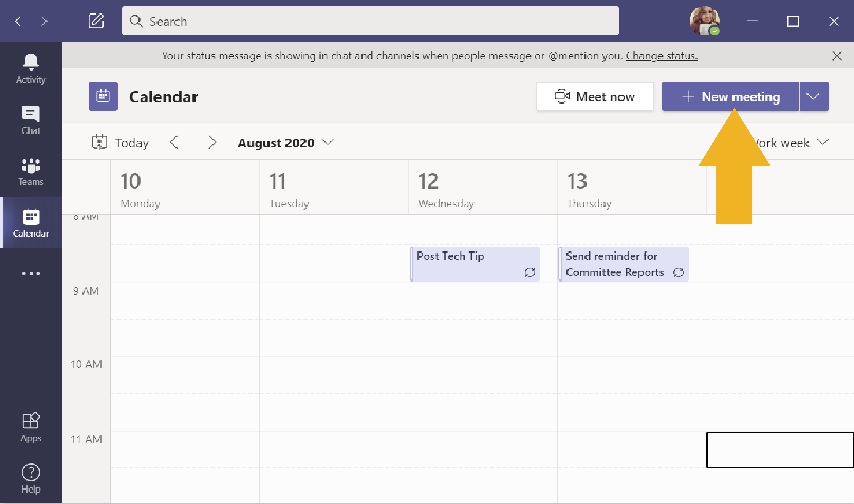
2. Click New Meeting in the upper right corner or click on the calendar on the day and time slot you want to create a meeting.
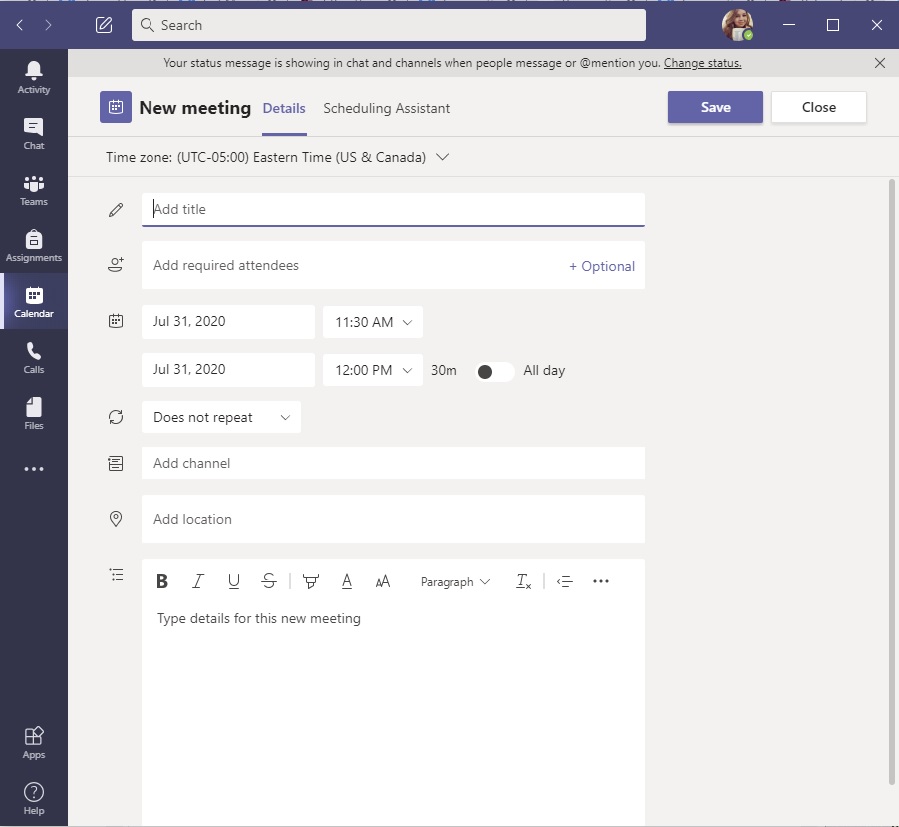
3. In the New Meeting window, enter the Title, Required or Optional Attendees, Start and End date and time, Details, and link a Teams channel if you would like. If you add attendees, they will receive an Outlook calendar invite.
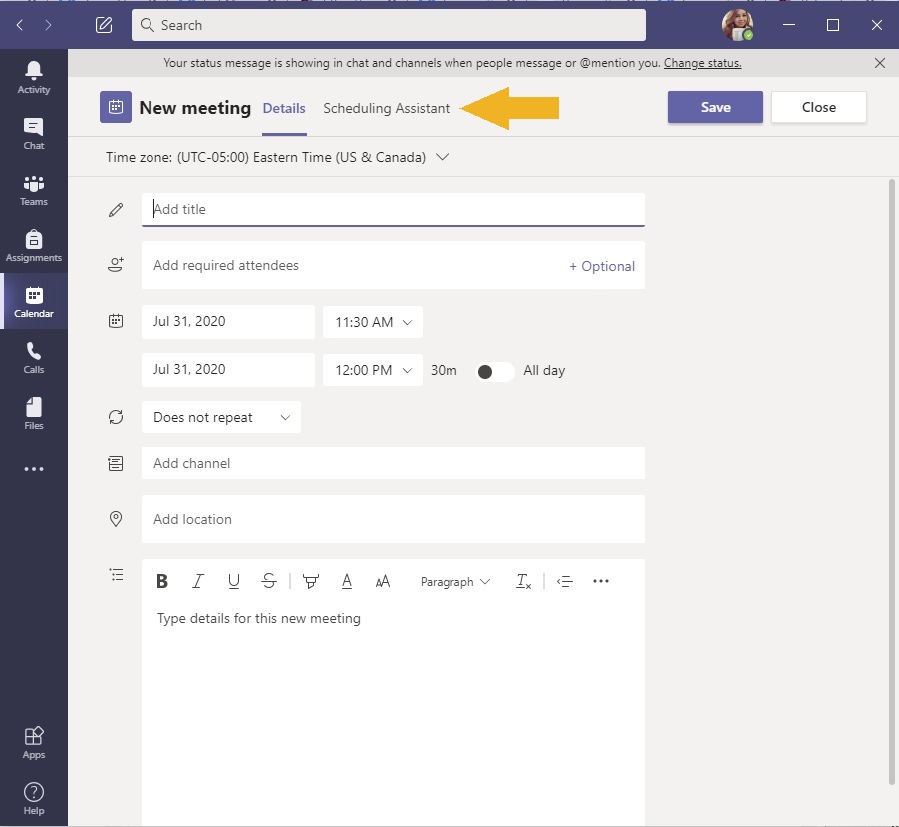
4. If you want to check someone's availability, click Schedule Assistant next to the Details section to display availability based on their Outlook calendars.
5. When you are finished adding your meeting information, click Save. This will add the meeting to your calendar and send calendar invites to any attendees you listed.
In a Teams call, all participants are able to share their screens. To share your screen, start a call and then click the Share Screen button at the bottom of the call window.
The Teams mobile app allows you to take your conversations and calls on the go. Available on the iOS App Store for Apple devices, Google Play for Android devices, and the Windows Phone Store, the Teams app offers several features including the following:
To access the app, visit your app store, search "Microsoft Teams," and download the free app. Log in using your Winthrop credentials and your app will be synced with your desktop or web app.
Once your app is installed, Teams calls will ring on your mobile device as well as your computer and you can continue chats when you are away from your keyboard.
Faculty and some staff may find it useful to use Teams to host virtual office hours. Virtual office hours work just like on-campus office hours where you schedule a block of time to be available for walk-in discussions with students or staff. To create virtual office hours in Teams, please use the following resources.
Downloadable instructions: Creating Virtual Office Hours in Teams (PDF - 1.0M)
While there are a few platform options for hosting virtual office hours, Teams offers these features:
1. Open Teams and click on the Calendar menu. This is located on the left side of your screen.
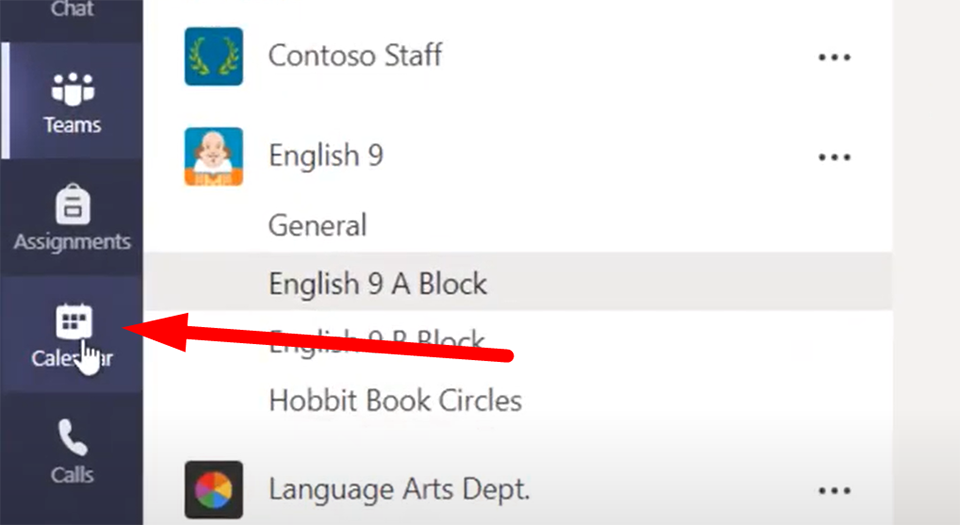
2. In the upper right hand corner of your calendar, click on the New Meeting button.
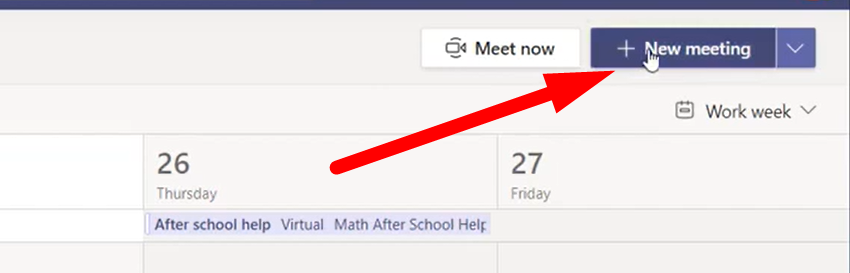
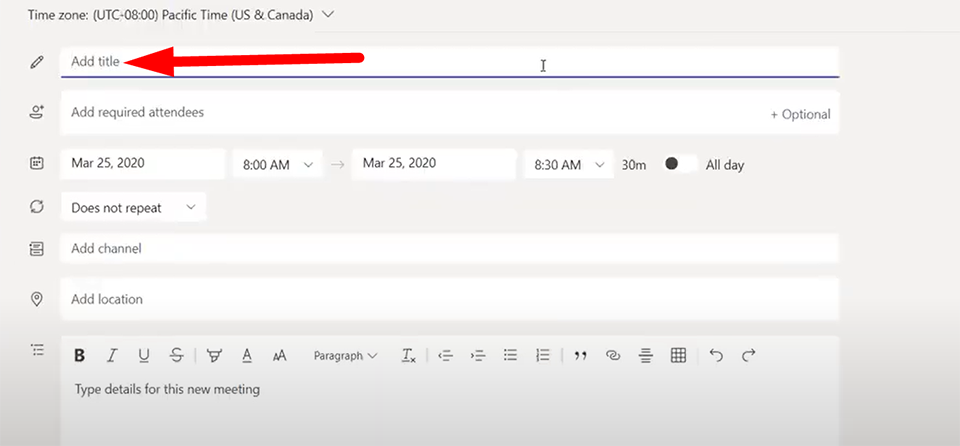
3. A new meeting window will pop up. Here, you can add a Title for your meeting.
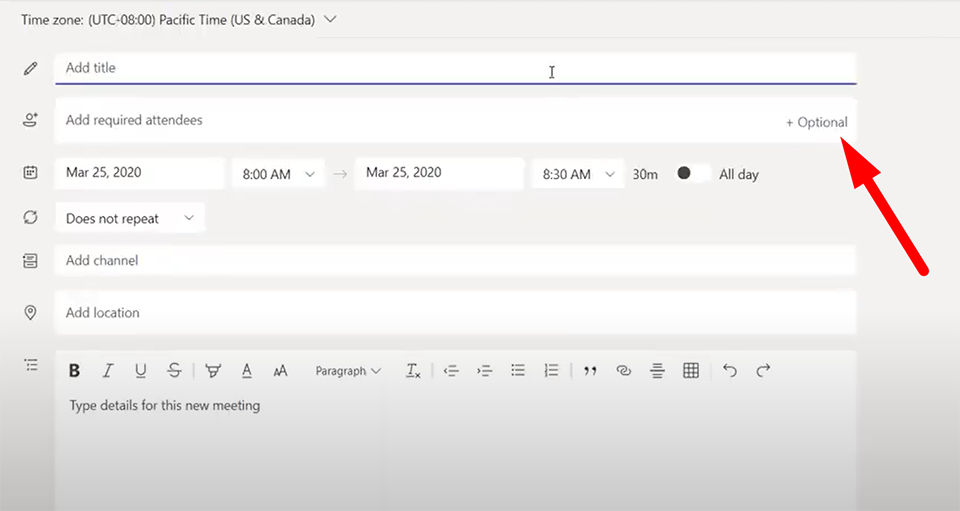
4. For office hours, you can add students as Optional Attendees here. You need to have at least one attendee (either optional or required) in order for Teams to generate a Join Meeting link. If you would like, you can add all of your students as optional attendees.
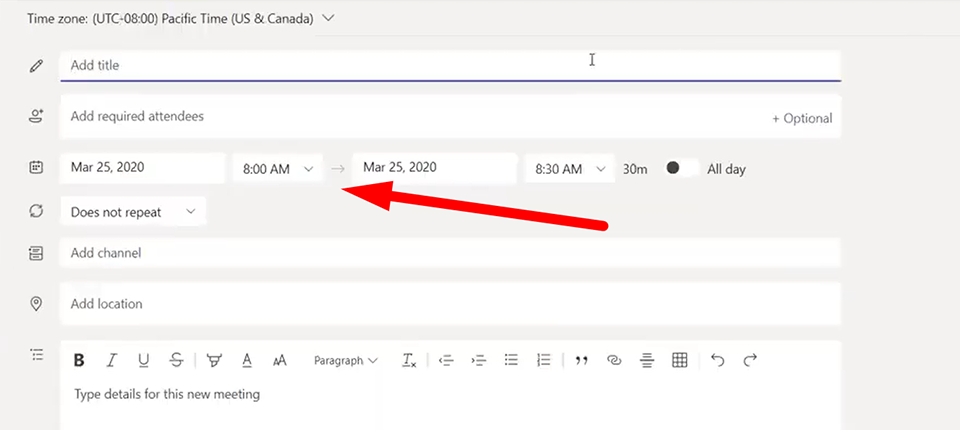
5. Choose the start date and time for your office hours as well as your end date and time.
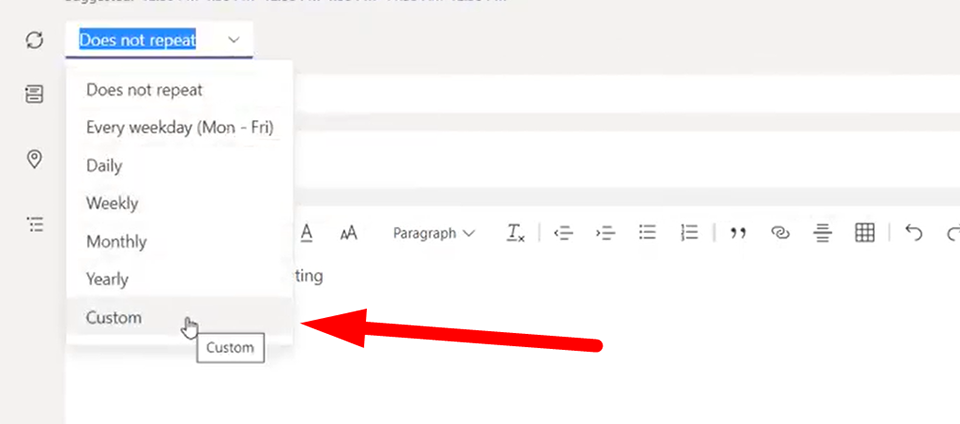
6. To set office hours that repeat throughout the week, click on the down arrow to the right of Does not repeat and choose Custom.
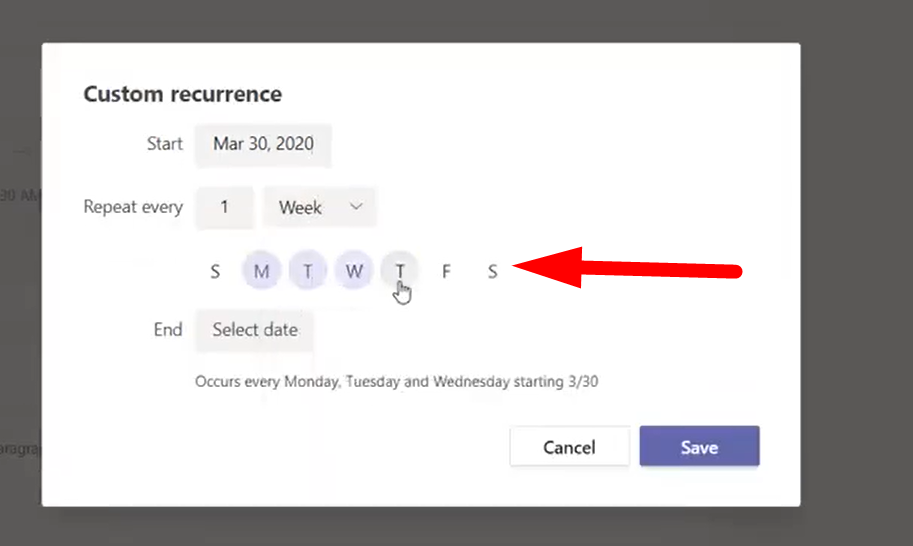
7. Select the day you would like your office hours to begin, how often you would like them to repeat, the days you would like to have office hours, and the day you would like your office hours to end. When you are done, click Save.
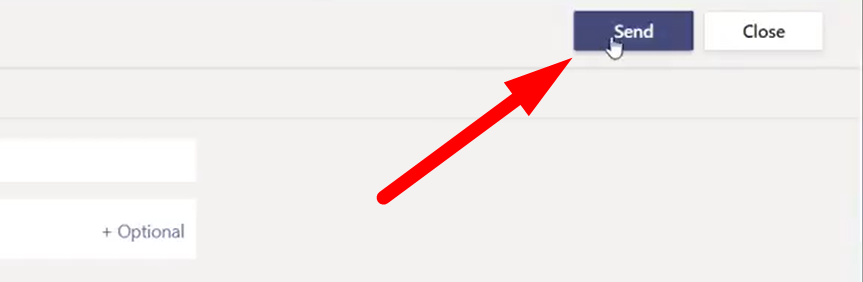
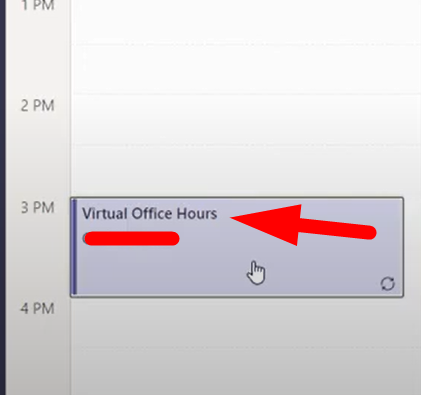
8. Back in the new meeting window, click Send. This will add the office hours to your Calendar and send a calendar invite to any Optional or Required Attendees you listed.
If you did not include all of your students as Optional Attendees when you created your office hours, you can chare your meeting invitation with a link.
1. In your Teams Calendar, click on the office hours meeting you created.
2. In the body of the meeting description, right-click on the large Join Microsoft Teams Meeting link and click Copy Link.
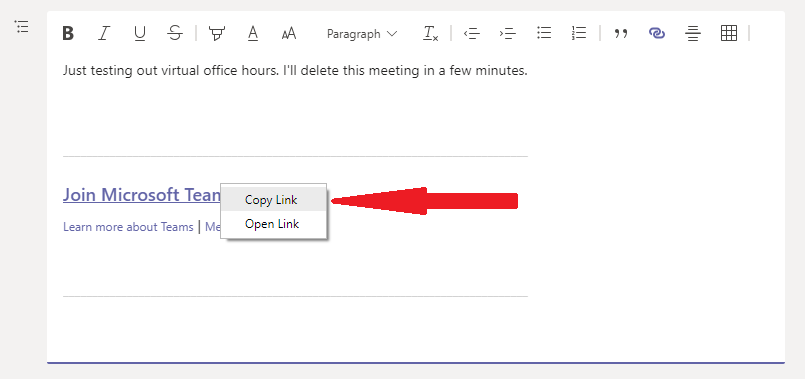
3. Paste this link in an e-mail to students or in your Blackboard course for your students to access. When students click on this link, Teams will open in a browser, but they can choose to join the meeting using the desktop app if they have it.
The whiteboard feature is a shared drawing and text feature that functions as an in-person classroom whiteboard would. Participants and meeting hosts can use pen, text, and note fatures to share ideas in a live visual format. In Teams, you can have multiple whiteboard "pages" that are saved for all participants to access later in the meeting chat.
NOTE: The whiteboard feature is available in scheduled Teams meetings, not impromptu calls.
For more information, please reference Microsoft's support page on Whiteboards.
For resources and help planning a large virtual event, please contact the Office of University Events and visit their Event Resources page.